Getting started
- System requirements
- Download
- Choose the Server processes
- Installation on Windows
- Installation on Linux
- License
- Root password
- Network preparation
- Initial project setup
- Start the Server
- Client login
- First steps after login
- Upgrading
- Troubleshooting
This page describes version 2.6, in which the Server is a set of separate processes (see Server processes).
System requirements
- Windows 10 or newer for the Server and graphical Client, or Linux for the
Server only, without the
scada-setuptool (see Installation on Linux) - Windows administrator rights to install and set up the Server
- A TCP/IP network between the site’s computers; Clients connect to the
scada-proxyprocess on port 2000 (see Network preparation) - A license file issued for the Server processes you need (see License)
Download
Distributions are published on the Telecontrol SCADA releases page on GitHub.
WARNING: the release published today, 2.5.7, predates version 2.6: it
installs the Server as a single Telecontrol SCADA Server service and does
not contain the separate 2.6 processes. The earlier rules apply to it: the
Telecontrol SCADA Server service, a HASP or Guardant hardware key, and the
configuration in %ProgramData%\Telecontrol\SCADA Server\Configuration.
Choose the Server processes
A version 2.6 Server is always installed as several processes: the protocol
processes receive their configuration from scada-config and keep none of
their own, so a protocol process cannot run without scada-config.
The smallest set scada-setup builds is:
scada-config, which holds the configuration;- one or more protocol processes (
scada-modbus,scada-iec104,scada-iec61850, and on Windows alsoscada-opcandscada-vidicon); scada-filesystem— without itscada-setup applyprints a warning and the server-side file system (displays stored on the Server) is unavailable;scada-proxy, which the Clients connect to.
Add scada-historian to archive values and events; without it there is no
archive.
The license must name every one of these processes, config,
filesystem and proxy included, not only the protocol processes: a process
the license does not name stops right after it starts, and
scada-setup apply refuses to install it.
All the processes may run on one computer or be spread over several. What each process does, and the start order, are described in Server processes.
Installation on Windows
One installer carries every Server process and the scada-setup tool. Which
processes run is decided by the license.
-
Install the package:
msiexec /i telecontrol-scada-<version>.msi /qn -
Put the license file at
%ProgramData%\Telecontrol\SCADA Server\license.json. -
From an elevated command prompt, run:
"C:\Program Files\Telecontrol SCADA\bin\scada-setup.exe" apply --svc-password <password> --root-password <root password><password>is the password of thesvcservice account the processes use to connect to each other. It must be the same on every computer of the site.<root password>is the password of the built-inrootaccount; see Root password. Write both passwords down somewhere safe: every upgrade and every restore from backup needs them.
apply enables every process the license entitles (narrow it with
--tiers), writes each one’s parameter file
%ProgramData%\Telecontrol\SCADA Server\<process>\server.json (the
folder of scada-filesystem is named filestore), creates the
Server certificate in
C:\Program Files\Telecontrol SCADA\data\Certificates unless one is already
there, creates the configuration databases (never overwriting an existing one), registers one
Windows service per process, and starts them in the right order. To check the
result:
scada-setup status
Several computers. Set up the central computer first, then the computers running protocol processes, giving them the central computer’s address:
rem Central computer:
scada-setup apply --tiers config,historian,filesystem,proxy --svc-password <password> --root-password <root password>
rem Computer near the equipment:
scada-setup apply --tiers modbus,iec104 --central 10.0.0.10 --svc-password <password>
The protocol processes need no root password: scada-config keeps their
accounts. --central is required on a computer without scada-config. The
remaining links between processes are set up automatically.
Write down the --tiers, --central and --advertise you gave apply
on each computer, and repeat them on every later apply. Without
--tiers the command enables every process in the license, including on
a computer where they do not belong. All scada-setup commands are described
in the Server section.
The graphical Client is installed on one or more operator workstations; the Server and the Client may also share one computer.
Displaying schematics
The version 2.6 Client renders Modus schematics (.sde and .xsde files)
itself, through a display module that has to be in the Client’s folder,
beside its executable. The ActiveXeme component is not used by the version
2.6 Client. Without the module, a display window shows the message “No
display runtime is installed.” with the reason. Editing schematics still
needs the Modus graphics editor.
Installation on Linux
The Server processes run on Linux, but scada-setup neither installs nor
starts processes there (only scada-setup generate, which writes parameter
files, is available): start the executables of the processes you need, each
with its own parameter file (see
Linux deployment). Container
deployments use a single Docker image.
The graphical Client is not supported on Linux.
License
The license is a signed license.json file listing the processes purchased
and its validity period. The same file goes on every computer of the site. A
process the license does not name stops right after it starts.
Expiry. scada-setup status shows when the license ends (the line
License: … (expires …); an expired one shows OUTSIDE VALIDITY WINDOW).
Check it yourself: the Server warns of the coming expiry only as system events
in the Client, during the last 30 days. Once the license has expired, the
processes keep running but refuse Client requests until the license is
replaced.
Replacing the license file. Running processes re-read the file every 5
seconds and pick up a new license without a restart. So replace the file in
one step: copy the new license into the same folder under a temporary name,
then rename it to license.json over the old file:
copy new-license.json "%ProgramData%\Telecontrol\SCADA Server\license.new"
move /y "%ProgramData%\Telecontrol\SCADA Server\license.new" "%ProgramData%\Telecontrol\SCADA Server\license.json"
WARNING: if the file is missing or only partly written when a process
checks it (for example while it is being copied over the old one), the
process concludes there is no license and stops. Windows does not restart
such a service: once the file is in place, start the processes with
scada-setup start.
Adding a process. Replace the file with the new license on every computer,
and on the computer that will run the new process, run scada-setup apply
with that computer’s full process list in --tiers, the new one included,
and the same other options as at installation.
Parameter files written by scada-setup already contain
"license": {"require_gcp_binding": false}. If you write a parameter file by
hand and the Server does not run on Google Cloud, set it yourself —
otherwise the process cannot verify its license and serves no requests. See
Licensing.
Root password
The built-in root account has all rights. Its password is set by the
--root-password option of scada-setup apply (or the
SCADA_SETUP_ROOT_PASSWORD environment variable). On a computer running at
least one of scada-config, scada-proxy, scada-historian and
scada-filesystem, apply refuses to run without it: each of those processes
has its own root account, which would otherwise accept an empty password.
scada-setup stores the password in the Windows service settings of those
processes rather than in the parameter files, and the processes write it again
on every start. So:
- to change the root password, run
scada-setup applywith the new--root-password— a password changed from the Client is replaced by the one given toapplythe next time the process starts; - give the current root password on every later
apply, upgrades included.
See Root password.
Network preparation
scada-setup does not create firewall rules — open the ports by hand:
- from the Client workstations — only inbound TCP port 2000 on the
computer running
scada-proxy; - between the site’s computers (when the processes run on more than one) — the processes’ OPC UA ports from the table below.
| Process | OPC UA | Clients |
|---|---|---|
scada-proxy |
4840 | 2000 |
scada-config |
4841 | 2001 |
scada-historian |
4842 | 2002 |
scada-modbus |
4843 | 2003 |
scada-iec104 |
4844 | 2004 |
scada-iec61850 |
4845 | 2005 |
scada-filesystem |
4846 | 2006 |
scada-opc |
4847 | 2007 |
scada-vidicon |
4848 | 2008 |
WARNING: OPC UA ports 4840–4848 must be reachable from the site’s computers
only. Processes register with scada-proxy and scada-config without
authentication, anonymous OPC UA sign-in is always offered, and OPC UA client
certificates are not checked by default (see
Server certificate).
A computer that reaches these ports can connect to the Server processes or
pose as one of them.
Ports 2001–2008 of the other processes accept user sign-ins too, but Clients do not need them: keep them closed.
Initial project setup
If you have a ready project configuration database (a version 2.6
configuration.sqlite3), put it in the Configuration folders of three
processes, each of which works with its own copy: scada-config serves the
configuration to the protocol processes, scada-proxy checks Client user
names and passwords against it, and scada-historian reads the archive list
and the archive assigned to each object from it.
- Stop the processes:
scada-setup stop. - Copy the file into the
config\Configuration,proxy\Configurationandhistorian\Configurationfolders under%ProgramData%\Telecontrol\SCADA Server, replacing the databasesapplycreated. - Run
scada-setup applywith the same options as at installation. It keeps the copied databases and adds thesvcservice account (id 100) to them, without which the processes cannot connect to each other. A project user with id 100 is replaced by thesvcaccount. A database taken from another version 2.6 site keeps that site’ssvcpassword: this site then needs the samesvcpassword, or the processes cannot connect to each other.
Move a version 2.5 Server’s configuration with scada-setup migrate instead:
it also carries over the user passwords version 2.5 kept in a separate file
(see Upgrading from version 2.5).
On each workstation, copy the schematic files (.sde) to
%ProgramData%\Telecontrol\SCADA Client, or upload them to the
server-side file system
if that feature is used.
To explore the system without field equipment, give objects emulation.
For project engineering details, see Development.
Start the Server
The process services start automatically with Windows; a user sign-in is not
required. When a process fails, Windows restarts its service (see
Windows services).
scada-setup start and scada-setup stop start or stop all of the
computer’s processes in the right order.
For diagnostics, a process can be started in console mode.
Client login
Start the Client from the desktop shortcut or the Start menu. The login dialog asks for SCADA credentials and, optionally, the target server name or IP address.
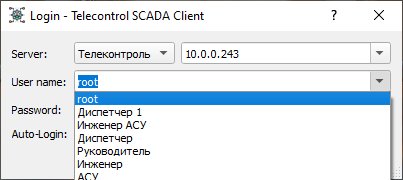
For the first login, use root with the password given as
--root-password during installation.
Enter the host name or IP address of the computer running scada-proxy in
the Server field only if it is a different computer. Otherwise, leave the
field empty.
If the Sign in automatically next time box is ticked, the Client reuses the saved credentials on the next startup. On Windows, hold Ctrl while launching the Client to sign in with other credentials once; other operating systems have no such bypass.
First steps after login
After you sign in:
- Open the object panel with
More -> Objects. The object tree shows the current values. Double-clicking an object opens its Graph. - Open available displays from the Display menu.
- Check equipment status with
More -> Equipment. - Create user accounts with
More -> Users, and work under them rather than asroot. See User configuration.
For the main operator interface, continue with Client.
Upgrading
These steps upgrade version 2.6 and later. A version 2.5 or earlier Server was a single process with a single service, and its data has to be moved into the version 2.6 processes — see below.
Before upgrading, make a backup — see Backup. Then, on each computer:
scada-setup stop
msiexec /i telecontrol-scada-<new version>.msi /qn
scada-setup apply --tiers <this computer's processes> [--central <address>] [--advertise <address>] --svc-password <password> --root-password <root password>
Give apply the same --tiers, --central and --advertise as at
installation, and the same svc password. The installer replaces only the
executables; apply rewrites the parameter files (hand edits to them are
lost) and leaves the data alone. On computers running only protocol
processes, --root-password may be omitted.
Upgrading from version 2.5
A version 2.5 Server ran as a single Telecontrol SCADA Server service and used a hardware key. To move to version 2.6, on the computer where it ran:
- Obtain a version 2.6 license and put it at
%ProgramData%\Telecontrol\SCADA Server\license.json. - Back up the
%ProgramData%\Telecontrol\SCADA Serverfolder. - Install the version 2.6 package
(
msiexec /i telecontrol-scada-<version>.msi /qn). - Run
scada-setup migrateand read the plan: what will be copied where, and anything that prevents the migration. The command changes nothing. - From an elevated command prompt, run
scada-setup migrate --execute --svc-password <password> --root-password <root password>. It removes the old service, copies the configuration, the users with their passwords, the history and the schematic files into the version 2.6 process folders, and starts the processes asapplydoes (creating the Server certificate included). The version 2.5 root password is replaced by the one given as--root-password(see Root password). - Check the result from the Client.
The old Configuration, History and FileSystem folders are neither
changed nor deleted. See
Upgrading from version 2.5
for the details.
Troubleshooting
- Client cannot connect to the Server
- Check that the Telecontrol SCADA Proxy service is running
(
scada-setup statuson its computer). Also verify that port 2000 is allowed by the firewall and reachable over the network. - A Server process stops right after starting
- There is no valid license file, or the license does not include this
process, or one of the Server certificate
files was deleted (the log shows
Can't open file;scada-setup applythen says which file is missing). The reason is written to the process log. See Licensing. - Every process stopped after the license file was replaced
- The file was missing or only partly written when it was checked. Put a
valid file in place (see Replacing the license file)
and run
scada-setup start. - A process runs but refuses requests
- The license is not verified or has expired (the expiry is in the
scada-setup statusoutput). Outside Google Cloud, check that"license": {"require_gcp_binding": false}is set; for an expired license, replace the file — no restart is needed. - Values are no longer archived
- After a protocol process's service restarts (for example Telecontrol SCADA IEC 104), automatic restarts after a failure included, its objects' values stop being archived. Restart the Telecontrol SCADA Historian service. See Monitoring.
- Schematics do not open
- If the display window says "No display runtime is installed.", the display module is missing from the Client's folder — contact Telecontrol. Otherwise, check that the schematic file is in %ProgramData%\Telecontrol\SCADA Client or in the server-side file system.
- Object values are shown in gray
- Gray value text means the value is not valid, for example because the
device is unreachable. Check the device state in the equipment panel
(
More -> Equipment). A blinking yellow row background means something else — the object has an unacknowledged event.