Event journal
- Event panel
- Event journal
- Acknowledgement
- Period
- Filters
- Columns
- Severity
- Kinds of events
- Export and printing
Events are shown in two windows:
- The event panel — current unacknowledged events. An event disappears from it once acknowledged.
- The event journal — every event in the chosen period, acknowledged ones included, with who acknowledged them and when.
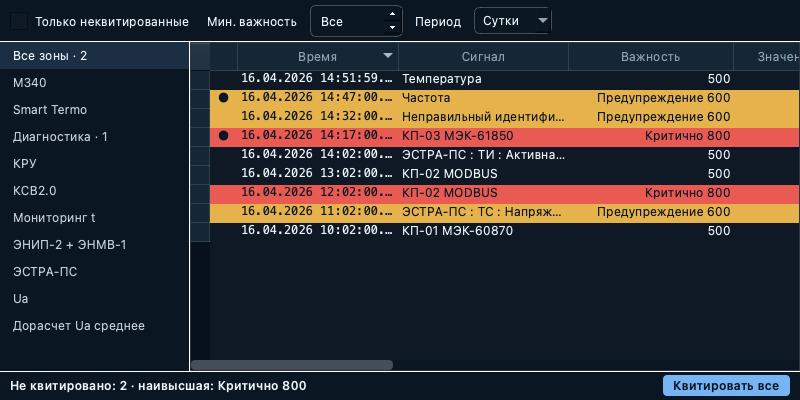
Event panel
Opened with More -> Events, it docks at the bottom of the main window under
the title “Current Events”. By default the panel opens by itself when an event
arrives and hides once every event is acknowledged — controlled by the
Show Events on Arrival and Hide Events on Acknowledge
settings.
The Severity group of the panel’s context menu sets which events are loaded into it: All loads every event, Custom… only those at or above the severity you enter. The threshold is remembered and stays in force until you choose All.
Event journal
Opened with More -> Event Journal; each use opens a new window. By default
the journal shows the current day’s events; the window title names the period
(“Event Journal for Day”, “… for Week”, “… for Month”), with “(Filter)”
appended when a filter is set.
A journal can also be opened for chosen objects: select them and choose Events in the Open group of the context menu. That journal shows only their events. The alarm strip on the overview page opens the journal with Unacknowledged Only already set.
New events appear in the journal at once; past events are loaded from the Server when the window opens and whenever the period changes.
Acknowledgement
Acknowledging confirms the operator has seen an event. Ways to do it:
- Double-click a row — acknowledges the selected events.
- Acknowledge in the context menu — acknowledges the selected rows.
- Acknowledge All — in the context menu and as a button below the journal — acknowledges every event the journal shows.
- The Acknowledge button on an event card in the inspector.
- With an object selected (in the object tree, on a display), the acknowledge command acknowledges all of that object’s unacknowledged events.
Acknowledge All acknowledges only the events shown in this window: the area, severity, object and unacknowledged-only filters apply to it, and events they hide stay unacknowledged. A collapsed group of repeated alarms is acknowledged whole, every repeat included.
There is no keyboard shortcut for acknowledgement.
When a command is unavailable its tooltip says why: “Select an event to acknowledge”, “The selected events are already acknowledged”, or “No event shown here is waiting to be acknowledged”.
If the Server refuses an acknowledgement — for example because the user lacks the right to acknowledge — the event stays unacknowledged and the event panel shows a Client message, “Event acknowledgement” («Квитирование событий»), with the reason, for example “Not enough rights to perform the operation”. The acknowledgement can be retried.
Acknowledgement applies system-wide: the event becomes acknowledged for every Client. The journal’s Acknowledged By and Acknowledge Time columns keep the user and time; an unacknowledged event shows “— pending —” there.
When more than ten events are unacknowledged, repeats of the same message from the same source collapse into one row marked “×N”. Acknowledging that row acknowledges every event collapsed into it.
Period
The period is set in the filter bar above the journal (Period: 15 min, Hour, Day, Week, Month) or from Item → Period in the main menu while the journal window is active, which adds Custom… — a dialog with an exact start and end date and time.
- Day starts at midnight, Week on Monday, Month on the 1st.
- 15 min and Hour start at the beginning of the current 15-minute interval or hour — not “the last 15 minutes” or “the last hour”.
The chosen period is kept with the window.
Filters
- Min. severity — show only events at or above a severity (0 to 1000; 0 means All). The context menu’s Severity -> Custom… sets the same.
- Unacknowledged Only — hide acknowledged events.
- The area list on the left — All areas and the top-level object groups, each with its count of unacknowledged events. Choosing a group keeps the events of that group and everything inside it.
- Objects — a journal opened for selected objects shows only their events.
There is no search by message text and no filter by event type. The period, the object list and the column layout are kept with the window; the minimum severity and Unacknowledged Only are not.
Columns
| Column | Contents |
|---|---|
| ● | Marks an unacknowledged event |
| Time | Date and time of the event, with milliseconds |
| Item | The object or device the event came from; “Local Event” for the Client’s own messages |
| Severity | The number and its range name: “Critical 800”, “Warning 600” |
| Value | The object’s value at the time of the event |
| Message | The event text |
| User | The user whose action caused the event |
| Acknowledged By | The user who acknowledged the event |
| Acknowledge Time | When it was acknowledged |
Events are sorted by time, newest first, by default.
Severity
Severity is a number from 1 to 1000. Rows of severity 800 and above are red (“Critical”), 600 to 799 yellow (“Warning”), and the rest have no fill. Acknowledging does not change the row colour. The summary line below the journal shows the number of unacknowledged events and the highest severity among them.
For the other colours and marks — the quality dots in the object tree, grey text for bad values, the quality letters — see Reading values and colours.
An object’s event severity is set in its properties — see Data objects.
Kinds of events
- State changes of discrete (TS) objects.
- Limit violations and returns to normal (see Limit checks).
- Manual input and unblocking.
- Switching to the backup or primary data source.
- Control commands — the preparation, the command and its result (see Command result).
- Client messages (“Local Event”) — for example about the connection to the Server and the results of operations.
Administrators’ actions (sign-ins, configuration changes) go to the audit log, which only administrators can open — see Operator workbench.
Export and printing
The journal can be exported to CSV or Excel (Excel on Windows only) and printed — see Export and import and Printing. Exports contain the events themselves: collapsed repeats are expanded, and the “●” mark is left out.